Motolog · Guides
How to automatically classify business and personal trips in Motolog
Automatic recording captures a journey. Classification gives that journey a purpose in your records. Motolog can apply tags through Trip Modes, using time or location rules to choose a mode for a drive.
For example, a Business mode can add a Business tag to journeys that match your work schedule and saved work locations. You can still correct an individual trip when its actual purpose differs from the rule. Automatic tagging is included in PRO and plans with PRO features; see plans and pricing.
Understand tags, modes, and rules
These three parts work together:
Scroll sideways to see all columns.
| Part | What it does | Example |
|---|---|---|
| Tag | Labels a recorded trip so you can recognize or filter it later. | Business, Personal, or a client name. |
| Mode | Groups tags and recording settings into a preset. | A Business mode that saves the trip and its route. |
| Auto-apply rules | Define when a mode should be selected automatically. | Weekday work hours combined with a saved location. |
A mode's name and its tags are separate. Naming a mode Business makes it recognizable in the mode list; add the Business tag as well if you want to filter those trips by that tag in History or Reports.
Set up automatic mileage tracking first if your phone is not yet recording trips. Classification rules organize the trips that get recorded.
Create a Business mode for your vehicle
Select your vehicle, open Drive, and open Mode to reach Trip Modes. Add a mode or edit an existing one.
Give it a recognizable name and choose the tags it should apply. Start with a simple Business tag; add a client or project tag when it helps you organize reports.
Check the recording controls before adding rules:
- Save trip keeps a record of journeys using this mode. Turning it off discards a trip when that mode applies.
- Route tracking saves the route so you can inspect it on a map. Turning it off means the route will not be recorded.
- Top speed tracking controls whether the trip's top speed is recorded.
To keep a personal mileage log, use a personal tag with Save trip enabled. Turning off Save trip removes the journey from your records; it does not simply classify it as personal.
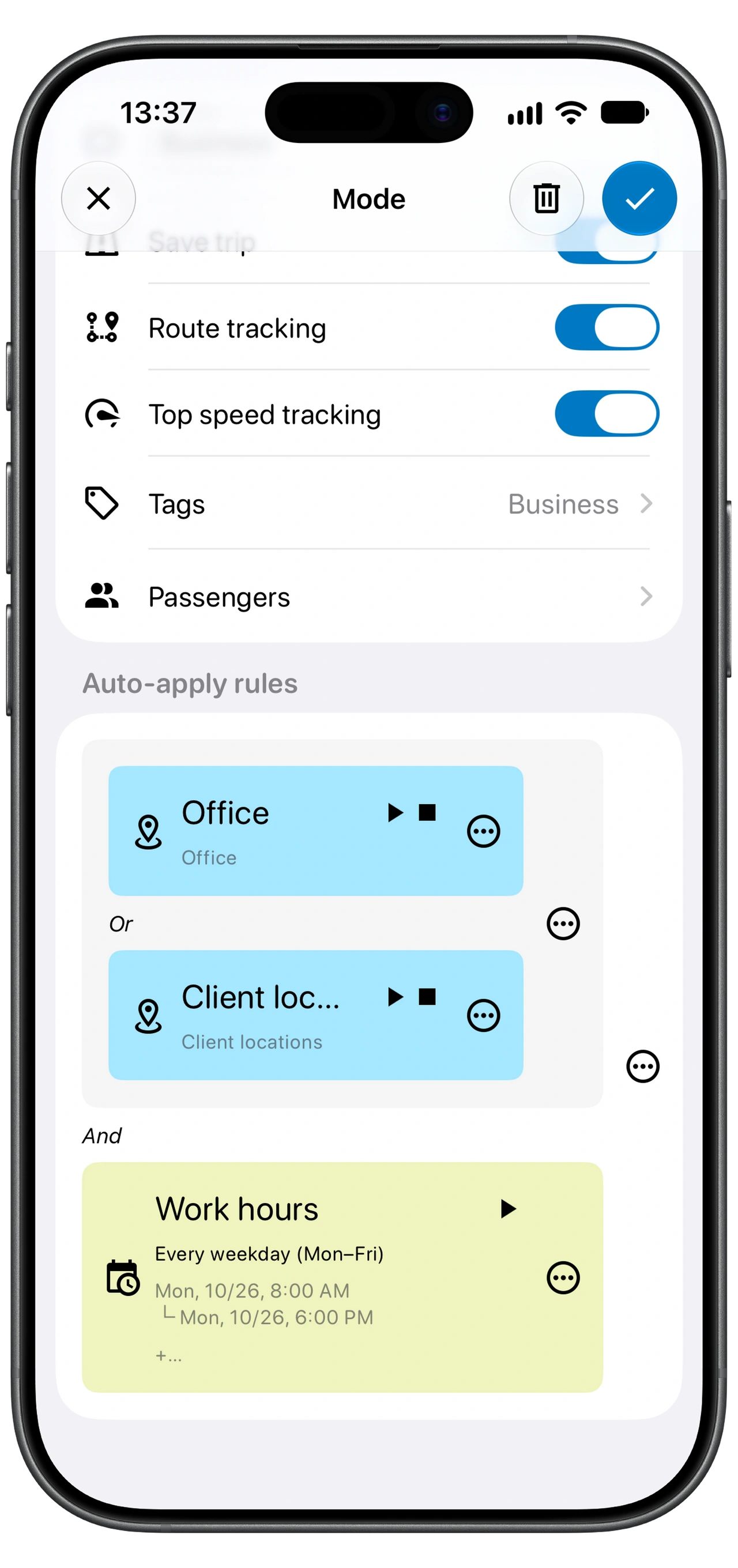
Start with a time rule, then add locations
Under Auto-apply rules, define a schedule that reflects when you usually make business trips. For example, select your working weekdays and hours. If your schedule varies, a broad time rule may include personal errands, so review whether time alone is a useful starting point.
For more specific matching, add a location rule. Choose the saved location and the condition you need, such as Start location or End location. Check the location on the map and its configured area so the rule matches the place you actually arrive at or leave.
Use descriptive rule names, such as Work hours, Office, or Client locations. Start with a small set of rules that you can explain and test before adding more exceptions.
Combine rules with And and Or
And requires both conditions or groups to match. Or allows either one to match. The grouping matters as much as the individual conditions.
The Business mode shown above combines:
(Office Or Client locations) And Work hours
That means a trip must match one of the location conditions and also match the work-hours condition. Matching Work hours alone is not enough for that example.
Scroll sideways to see all columns.
| What matches? | Does this example match? |
|---|---|
| Office and Work hours | Yes. |
| Client locations and Work hours | Yes. |
| Work hours, but neither location condition | No. |
| Office, but outside Work hours | No. |
If you use Or between the location group and Work hours instead, either group would be sufficient. Check the grouping whenever a mode applies more broadly—or less often—than you expected.
Put specific modes before broader ones
Motolog uses the first mode whose rules are satisfied. In Trip Modes, drag and drop modes to change their priority.
Suppose a Client visit mode and a general Business mode can both match the same journey. Put Client visit first if you want its tags and settings to take precedence. Include the Business tag in that client mode as well if those journeys should appear in a Business-filtered report; matching modes are not a way to stack every mode's tags together.
If you use a broad personal mode, keep it below more specific rules that should take priority. Also check that Drive is using automatic mode selection when you want the rules to choose, rather than a mode you selected manually for the journey.
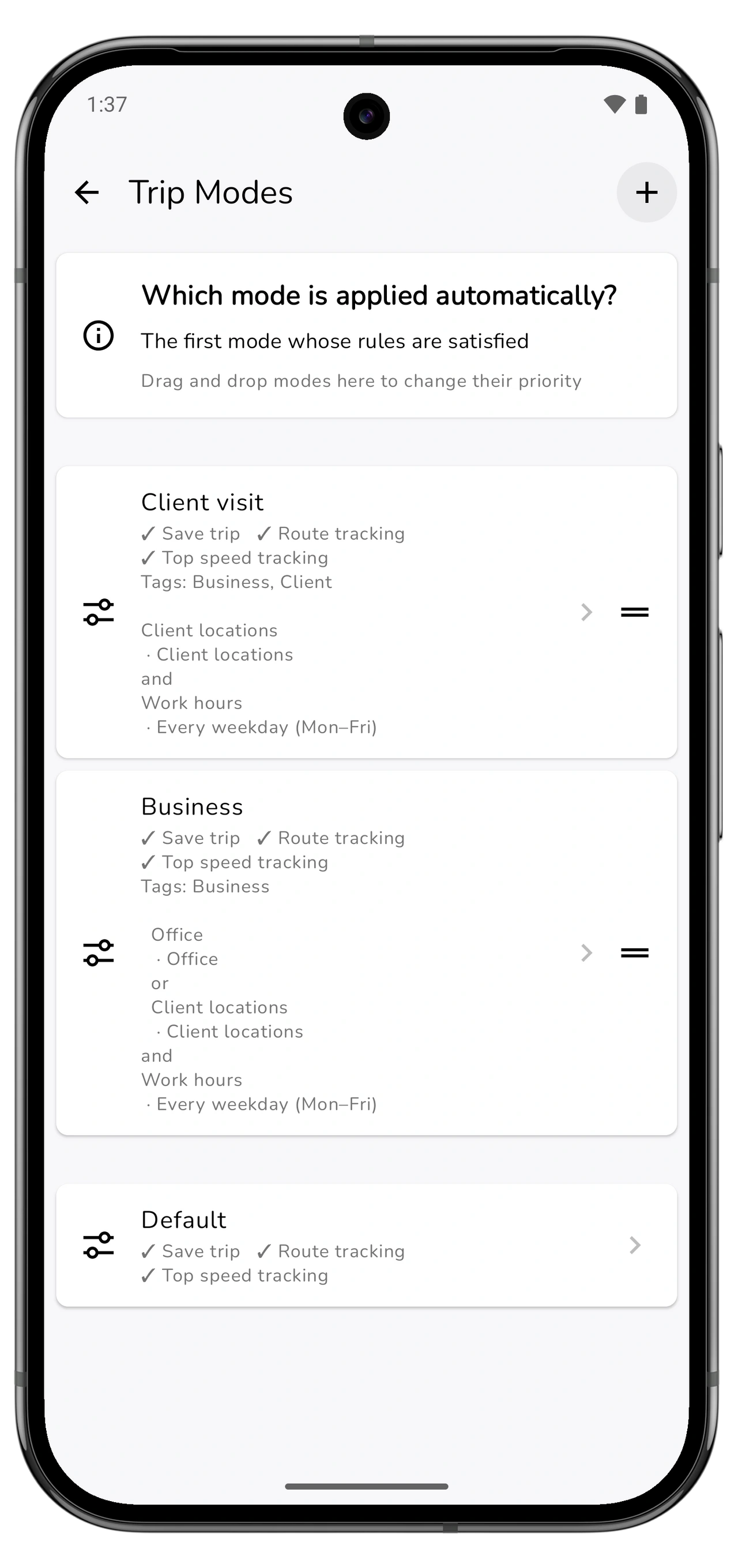
Test a few journeys and correct exceptions
Try a journey that should match the Business mode and another that should not. After each trip, open History and inspect its tags and recording details.
For a mismatch, check the selected vehicle, time condition, saved location, And/Or grouping, and mode priority. If you manually chose a mode on Drive, check that selection too.
Rules use the criteria you set; they cannot know why you made a particular journey. A personal errand during work hours is a good example. Open the saved trip and correct its tags when needed. Review existing records in History as well as checking the next automatically recorded trips.
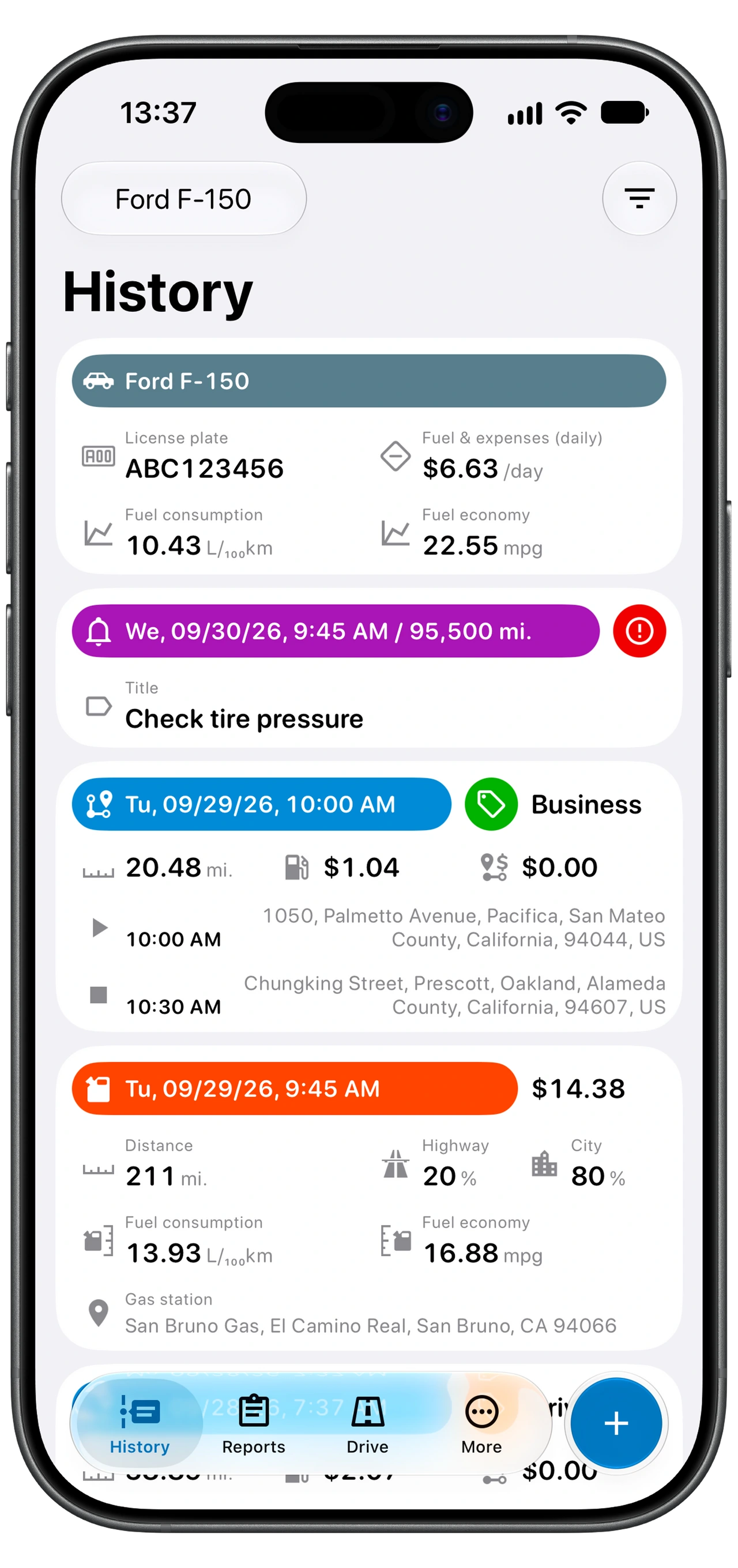
Use your tags in a mileage report
Once the tags are consistent, filter Reports → Trips by Business, a client, or another tag you use. The mileage reports guide explains how to choose the dates, review the totals, and export PDF or Excel.
If a journey is missing altogether, check Save trip in the mode that applied and use the automatic tracking troubleshooting guide. A missing record and an incorrect tag need different checks.