Motolog · Guides
Why Motolog isn't recording trips and how to fix it
If a trip is missing or incomplete, start by identifying what happened: it may be hidden by a filter, still in progress, discarded by a trip mode, or affected by the phone's tracking settings. You do not need to change every setting at once.
Use the checks below for your symptom and phone. If you are setting up automatic recording for the first time, the automatic mileage tracking guide explains the available detection methods.
Start with the symptom you can see
Scroll sideways to see all columns.
| Symptom | First checks |
|---|---|
| No trip appears in History | Selected vehicle, History filters, and whether the trip has finished. |
| Trips never start automatically | Autostart method, the actual connection or movement signal, and permission warnings on Drive. |
| Recording stops when the screen locks | Background location access and battery restrictions. |
| A trip starts late or ends too early | Start thresholds, pause and finish delays, connection changes, and location reception. |
| A trip exists but has no route | Route tracking in the mode that applied. |
| A trip is saved with the wrong tag | Mode selection, rules, and priority. |
| Longer FREE trips stop at about 10 km | The remaining full-trip allowance for the month. |
After changing a setting, make a short test drive and review the result. That makes it easier to tell which change helped.
Check that the trip is not hidden or still running
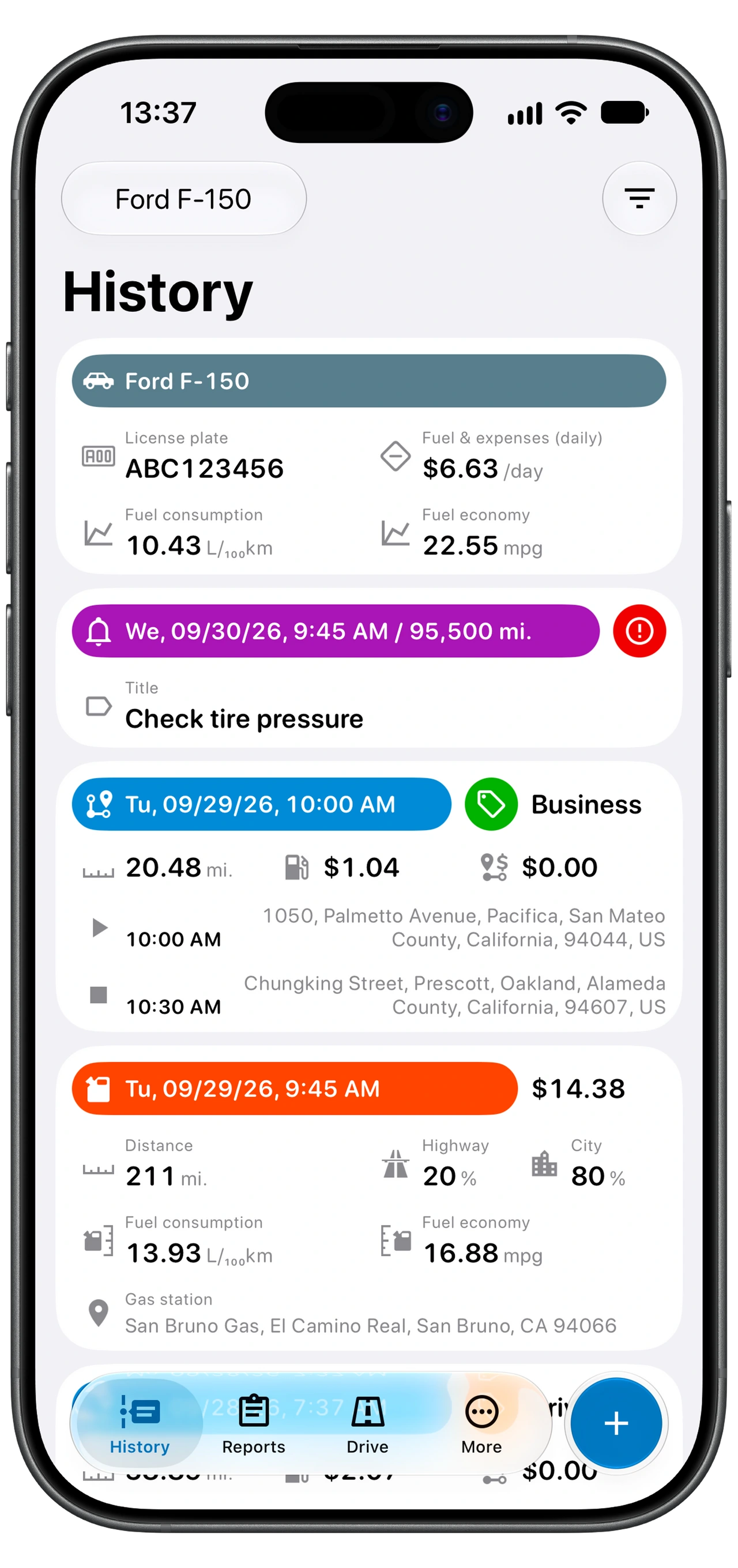
Open History and confirm that the correct vehicle is selected. Review the filter: the record type, date range, included and excluded tags, day of week, distance, and duration can all change what you see. Clear restrictive criteria and search again.
If you recently changed phones or signed in again, check that you are using the same Motolog account as before.
Open Drive to see whether the journey is still active or waiting to finish. Depending on your settings, a stop can remain part of the current trip until the finish delay expires. Review the record after the trip has finished.
Check the detection method for this vehicle
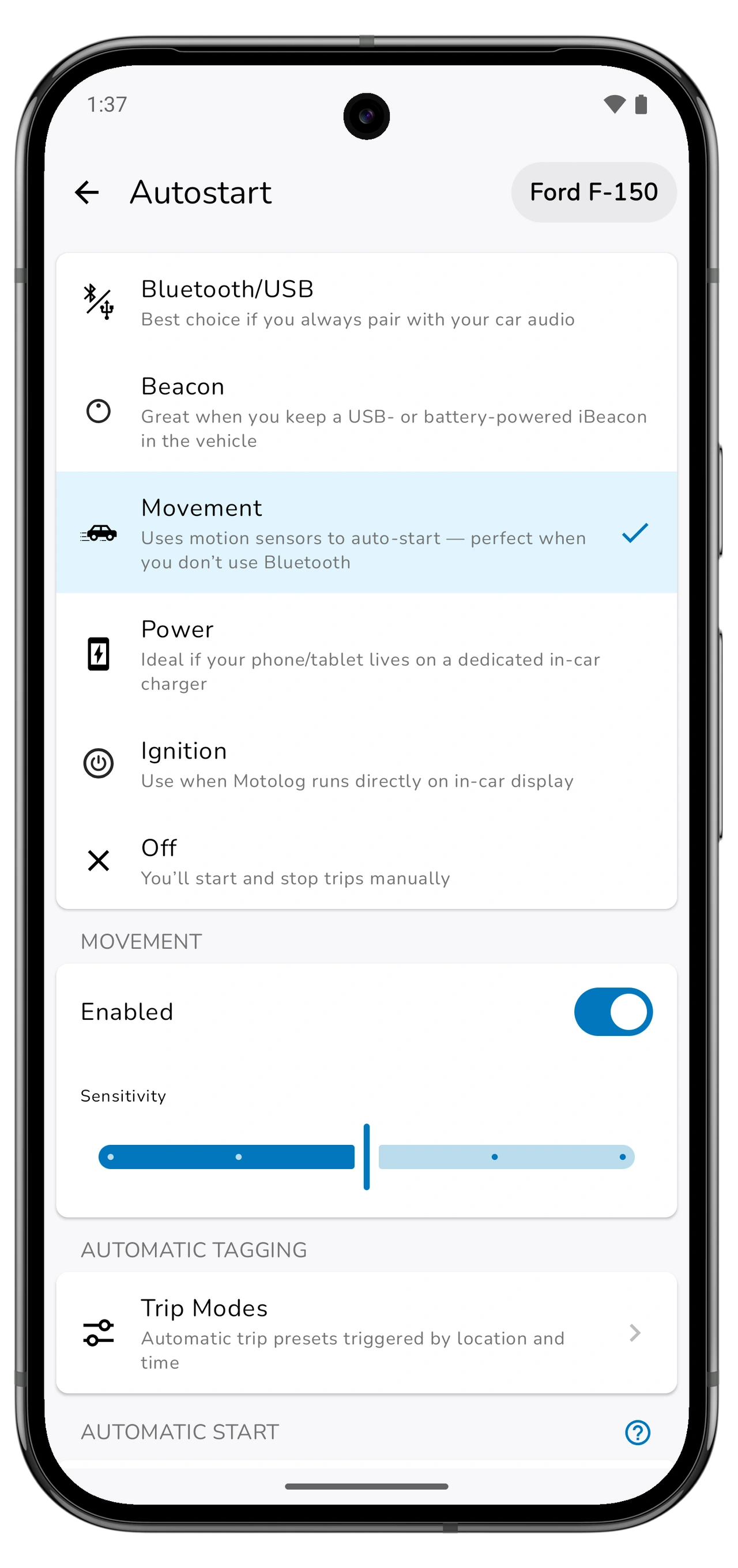
Open Drive → Autostart for the intended vehicle. Check the method you selected, then check the signal that method needs:
- Android Bluetooth/USB: confirm that the phone connected to the device configured for that vehicle. Recheck it after replacing a phone or car audio system.
- Beacon: check that the correct beacon is configured and that it is present and powered. Review any Bluetooth or nearby-device permission warnings from Motolog.
- Movement: check the activity or motion permission. This method depends on detected movement, so it will not behave like an immediate car-connection event.
- iPhone Bluetooth or CarPlay: review both Shortcuts automations using the iPhone section below.
Resolve warnings shown on Drive, including disabled location services or missing permissions. Detection settings are vehicle-specific, so repeat the setup for each vehicle you use.
On Android, check background access and battery settings
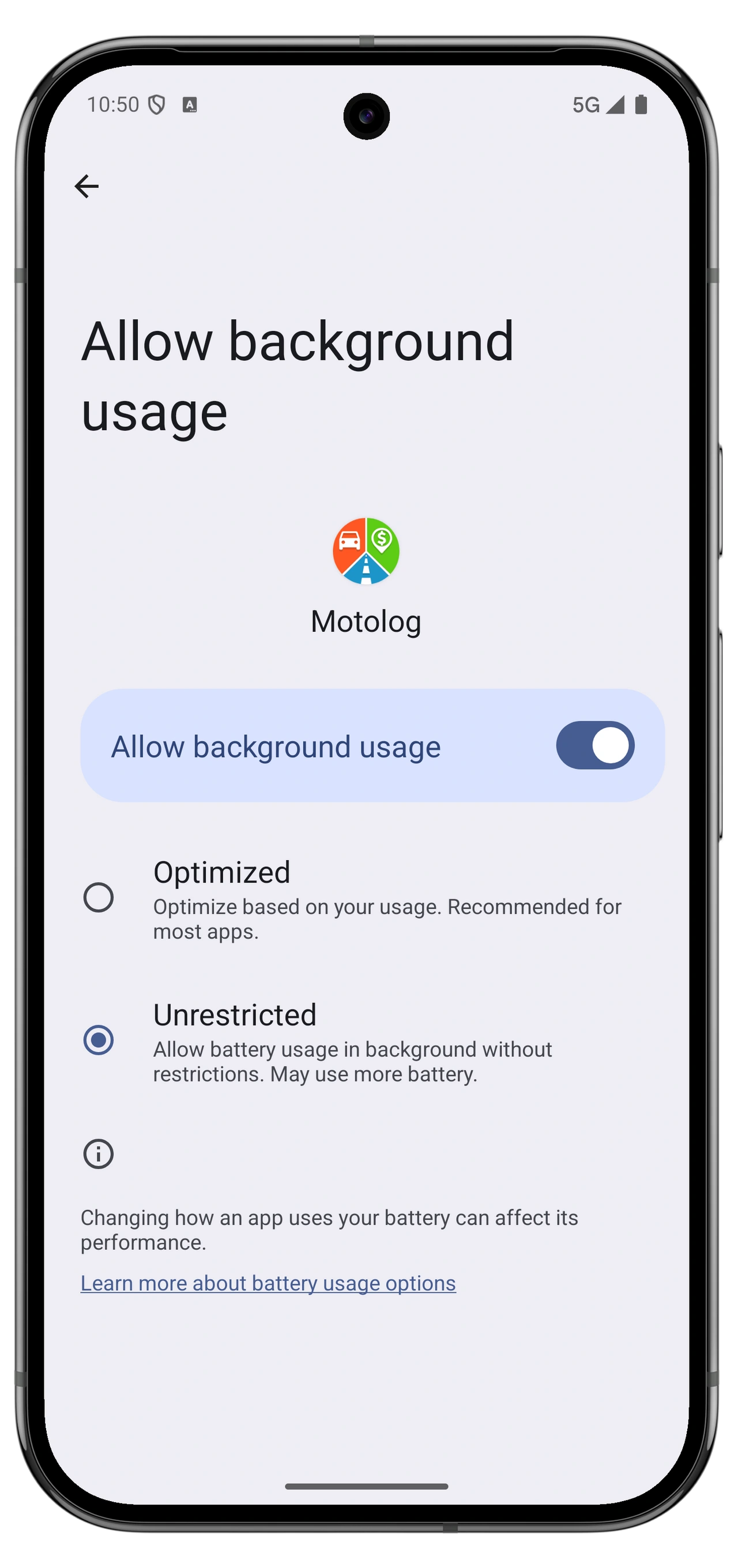
Automatic recording needs location access while Motolog is in the background. Open Drive → Autostart → Background execution and follow the guidance for your phone.
- Check that system location services are enabled and Motolog has the background location permission it requests.
- Allow activity recognition or nearby-device permissions when your detection method needs them.
- Review the phone's battery restrictions for Motolog. On phones with sleeping-app lists, follow the app's guidance about removing Motolog from restrictive lists.
- If Battery Saver is on, turn it off for the test drive. It can limit location updates.
Phone manufacturers use different settings names, so use the instructions shown in Motolog rather than looking for one universal menu path. Recheck these settings after changing or restoring a phone.
For the test, lock the screen as you normally would during a drive. A successful test only while the app stays open does not establish that background recording is working.
On iPhone, check permissions and both Shortcuts automations
Check that Motolog has Always location access. For Movement detection, also allow Motion & Fitness access. If Low Power Mode is enabled, turn it off for your test because it can limit location updates.
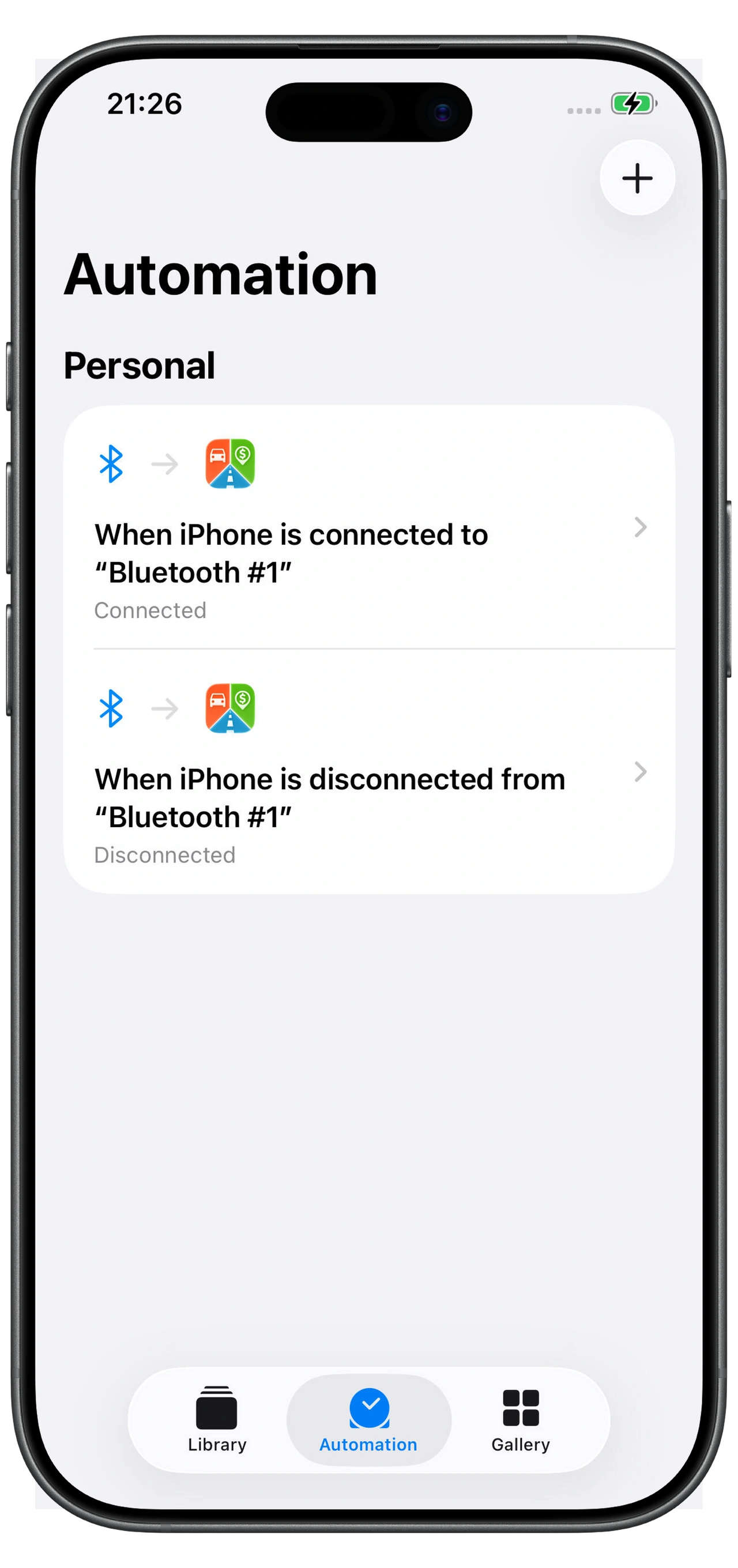
For Bluetooth or CarPlay, open Set up in Shortcuts from the vehicle's Autostart settings. Check both automations:
- The connection automation uses the correct car connection and Motolog's Connected action.
- The disconnection automation uses the matching disconnection event and Motolog's Disconnected action.
- Both actions refer to the intended Motolog vehicle.
- Both automations are set to Run Immediately.
Make sure the phone actually connects and disconnects during your test. If you changed cars, phones, or Bluetooth equipment, update the automation selections. Bluetooth and CarPlay are alternative triggers; Bluetooth tracking does not require a car with CarPlay.
These Shortcuts checks apply to connection-based detection. For Movement or Beacon, check the permissions and settings for that method instead.
Check modes, timing, and distance limits
Open Trip Modes from Mode on the Drive screen and inspect the mode that applies to the journey. If Save trip is off, a trip using that mode is discarded. If Route tracking is off, a saved trip will not have a recorded route. Turning those settings on later cannot recreate a discarded trip or a route that was not captured.
For incorrect tags or an unexpected mode, check time and location rules, mode priority, and any manual selection on Drive. The classification guide explains these controls.
For late starts or early finishes, review the start speed and delay settings, then the pause, resume, and finish settings. A brief connection loss or a stop can affect when a journey pauses or ends. Poor location reception can also affect the recorded distance and route. Change one setting at a time and compare another test drive.
On FREE, the first 10 trips per month can be recorded without a distance cap; subsequent trips are limited to 10 km each, about 6.2 miles. Check the allowance shown in the app if longer journeys consistently stop around that distance. LITE and PRO include unlimited trip recording; see plans and pricing.
Verify the fix and fill any remaining gaps
Take a short drive with the chosen detection method active, then allow the trip to finish. In History, check the vehicle, dates, distance, start and end locations, tags, and route if route tracking is enabled. Repeat the check on a few normal journeys.
If a past journey is missing, first make sure it is not hidden or still active. Then add it manually using + → Trip, using the details you can verify. Plans with automatic route estimation can help estimate a route from the locations you enter.
If the problem continues, contact support through Motolog and include your phone model, operating-system and app versions, selected detection method, and the approximate time and symptom of a failed test. A screenshot of a permission warning or relevant setting is more useful than changing several settings without noting which ones changed.
When the records are complete, follow the mileage reports guide to check and export them.