Motolog · Guides
How to create and export a mileage report in Motolog
A mileage report starts with the trips you have recorded. In Motolog, you can choose a vehicle, select a reporting period, filter the journeys you need, and export the result as a PDF or Excel file.
This guide takes you through a typical monthly business-mileage report on iPhone or Android. The same steps work for another date range or a different trip tag. If you are still setting up your log, start with how automatic mileage tracking works.
Review the trips you want to include
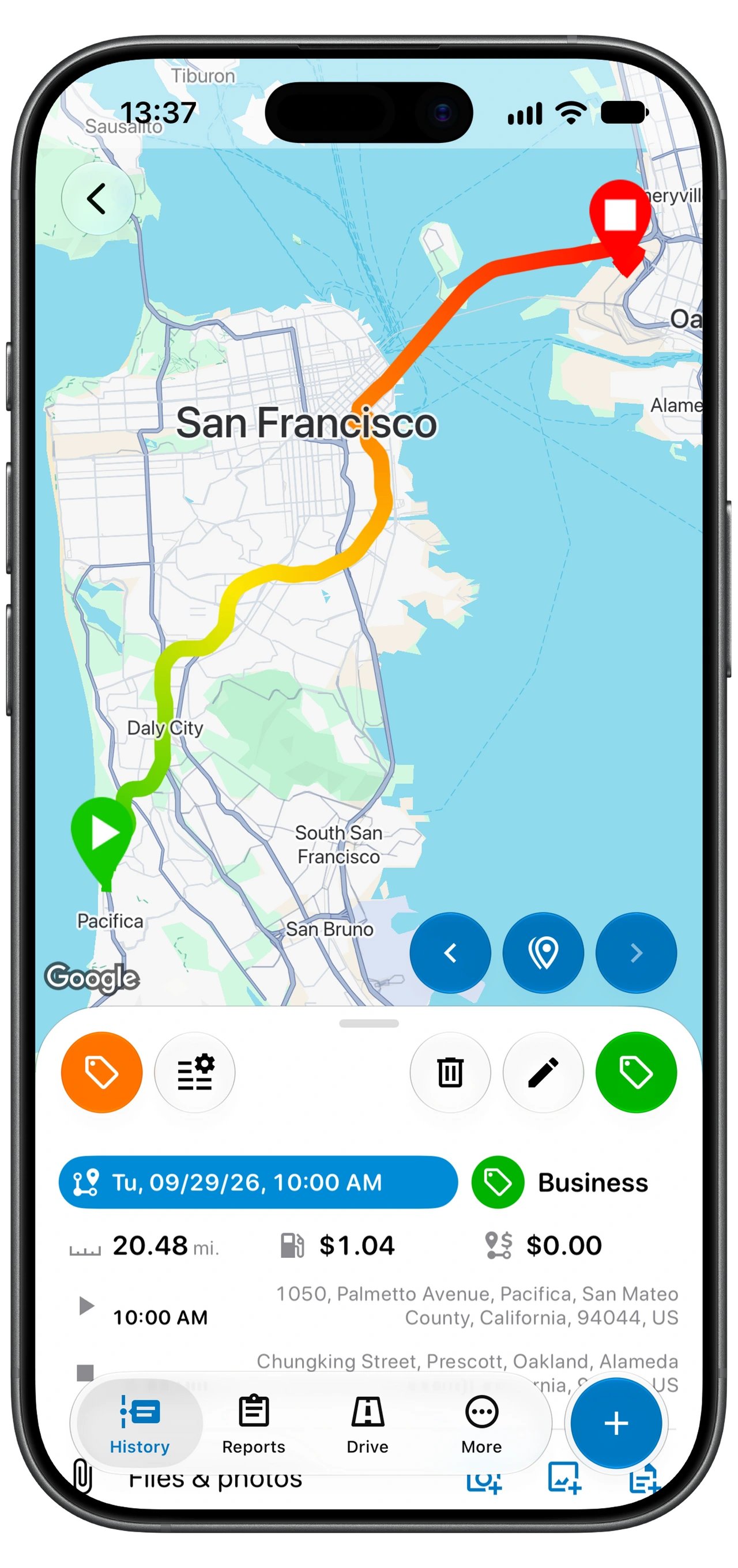
Open History for the vehicle you are reporting on. Before exporting, check a few representative trips and any entries that look incomplete:
- Date and time: the journey belongs to the reporting period.
- Distance and locations: the recorded start, destination, and distance match the drive.
- Tags: business and personal journeys are classified correctly.
- Notes: add the client, visit, or purpose when that context will be useful later.
Add any missing journey manually using the + button and Trip. Check for duplicates before adding it. If automatic tracking has been missing trips, use the tracking troubleshooting guide to address the cause as well.
Open Reports and choose the vehicle
- Select the vehicle using the vehicle selector at the top of the app.
- Open Reports.
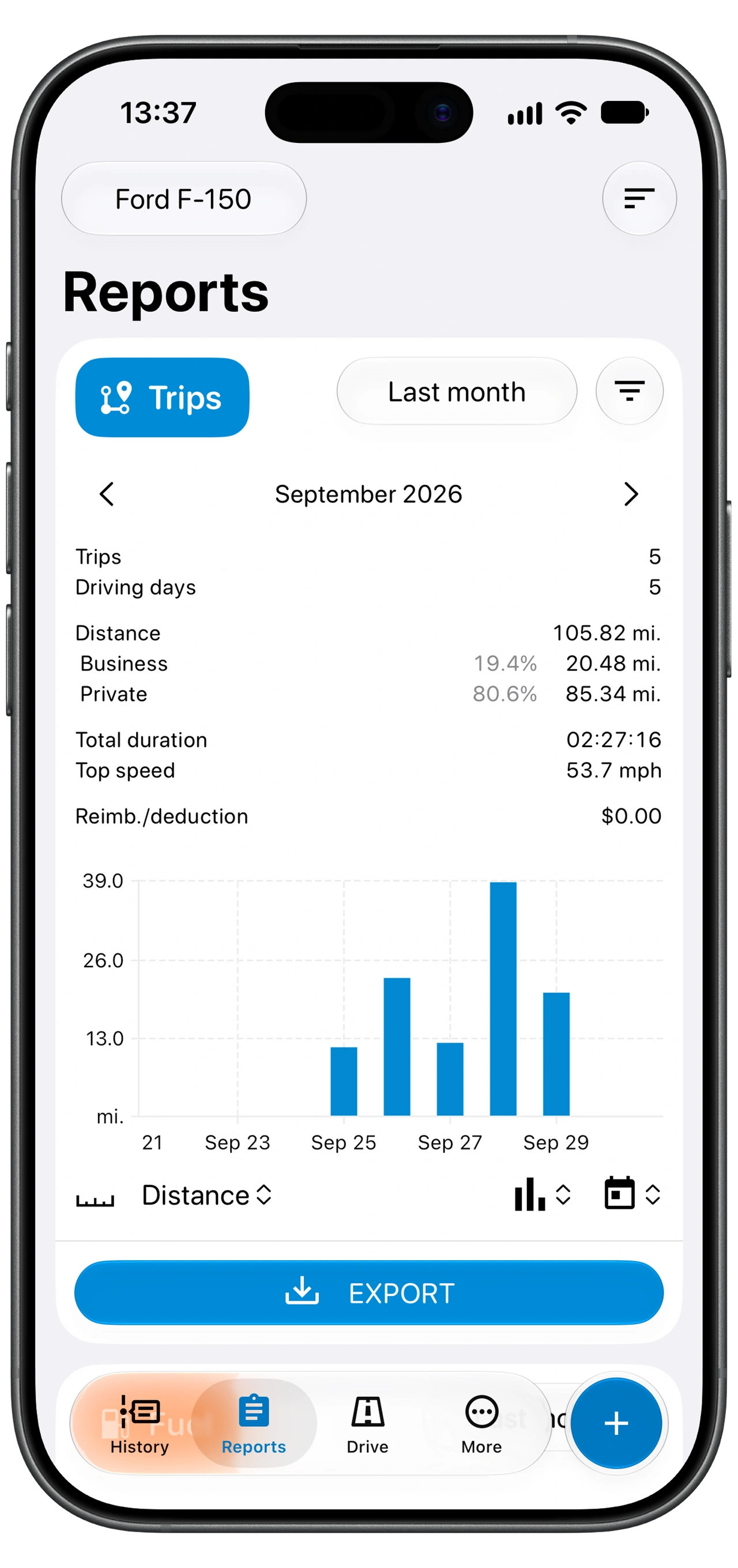
- Find the Trips card. Its summary shows the trip count, distance, and other totals for the current selection.
- Check the reporting period shown on that card before reading the totals.
Keep the same vehicle selected while you review the records and prepare the report. For another vehicle, switch vehicles and repeat the process.
The screenshot is an example: your totals, units, and visible report cards depend on your records and settings.
Set the date range and business-trip filter
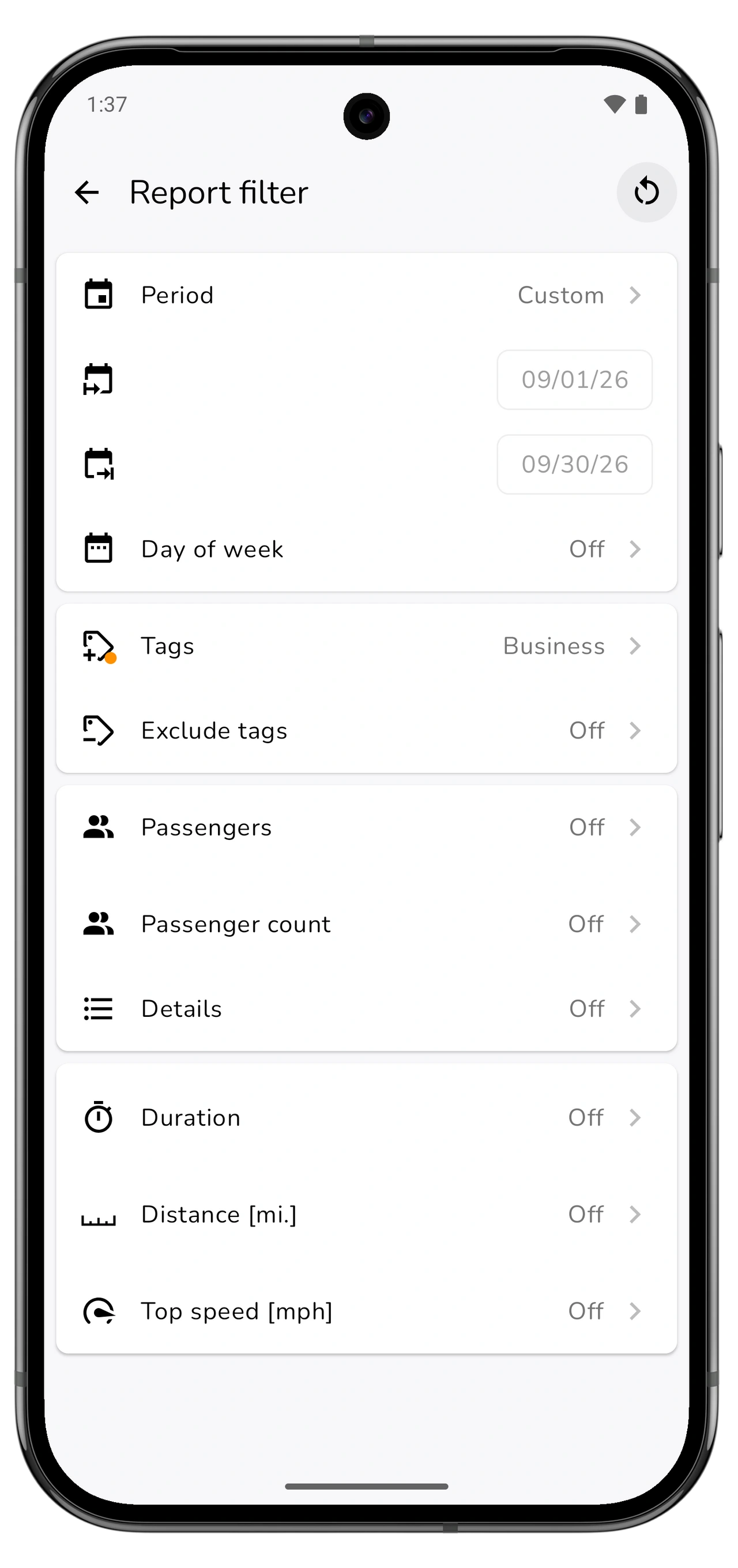
Use the period selector on the Trips card to choose the dates you need. For a calendar-month claim, select that month or set its exact start and end dates. A rolling period such as Last 28 days may cover different dates.
Open the filter beside the Trips card to review the Report filter. Select the tag used for your business journeys, such as Business. Check Exclude tags and any other active criteria, including day of week or distance, so they do not unintentionally remove trips you need.
If you want a report of all driving, remove tag restrictions. For a particular client or project, use the relevant tag instead. Review the filters in Reports even if you have already filtered History; those screens have their own filter settings.
Return to the summary and check the trip count and total distance. If either looks wrong, adjust the filters or correct the source trips before exporting.
Check reimbursement settings when you need an amount
A mileage total and a reimbursement amount answer different questions. Distance comes from the trips included in the report. The Reimb./deduction amount also depends on the vehicle's Fiscal settings and the trips those settings apply to.
Open Fiscal settings from the Trips card's Export menu. Check that the intended preset or rate applies to this vehicle and that its tag conditions match the trips you are reporting on. A Business tag on its own does not configure a reimbursement rate.
If the amount is zero, first check the vehicle, the trip tags, and the applicable fiscal settings. Choose the settings that match your employer's policy or the rules you are using; this guide does not prescribe a rate.
You can also create a distance-only mileage report when you do not need Motolog to calculate an amount.
Choose PDF or Excel and export
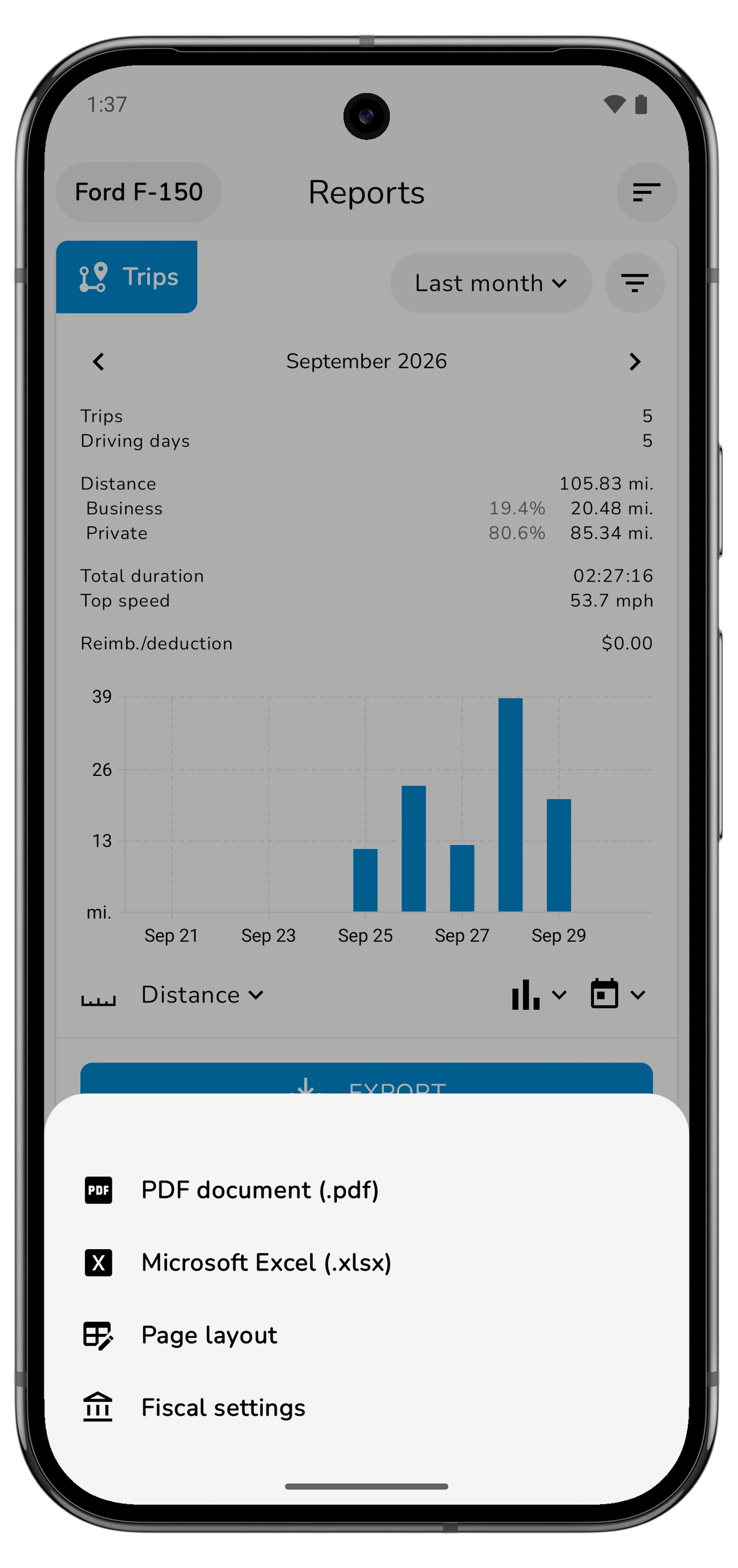
Tap Export on the Trips card, then choose a format:
Scroll sideways to see all columns.
| Format | When to use it |
|---|---|
| PDF document (.pdf) | A report you can read, print, or send with its page layout preserved. |
| Microsoft Excel (.xlsx) | A spreadsheet you can use for further analysis or an accounting workflow. |
To adjust the report's columns or presentation, open Page layout from the same menu, then generate the report again. Use the file-saving or sharing options offered by your phone to keep or send the exported file.
Reports are subject to your plan's limits. LITE and PRO include unlimited PDF and Excel reports; FREE reports can contain fewer entries. Check plans and pricing if the export indicates that some records have been omitted.
Check the exported file before sending it
Open the file and confirm that it contains the intended vehicle, dates, journeys, and distance units. Compare its trip count and total distance with the filtered Trips summary. If you included reimbursement, check that the amount reflects the fiscal settings you selected.
If something is missing, return to the report filters and source records. Correct the issue and export a fresh file. An already exported file will not change when you edit a trip in Motolog.
Save a copy with a name that identifies the vehicle and reporting period. That makes it easier to find the same report when a client, employer, or accountant asks about it later.
Make the next report easier
Review trips regularly instead of waiting until the reporting deadline. Automatic classification with modes and rules can apply the tags you use for recurring business journeys, while manual corrections handle exceptions.
If you also track operating costs, add refuelings with Motolog's scanner. Fuel records have their own report in Reports; the Trips export described here is your mileage report.