Motolog · Guides
How automatic mileage tracking works in Motolog
Motolog can record your drives automatically on iPhone and Android, so you do not have to press Start and Finish for every journey. You choose how the app detects your vehicle, allow it to use location in the background, and take your phone with you when you drive.
During a trip, Motolog uses your phone’s location data to calculate distance and record the journey. You can then review your trips, add business or personal tags, and prepare mileage reports. PRO and plans with PRO features can also apply tags automatically using rules you define.
How Motolog detects a trip
Automatic tracking begins with a signal: your phone connects to your car, detects vehicle movement, or detects a beacon you have placed in the vehicle. The method you select tells Motolog when to activate tracking. Your automatic start settings, including speed and delay settings, help determine when recording begins.
As you drive, Motolog records the trip in the background. You can use another app or leave the screen locked, provided the required permissions and background settings remain enabled.
When you stop or the vehicle connection ends, Motolog can pause the trip and finish it after the configured delay. A short stop can remain part of the same journey. The detection method and your pause, resume, and finish settings determine how stops are handled.
Choose how to detect your vehicle
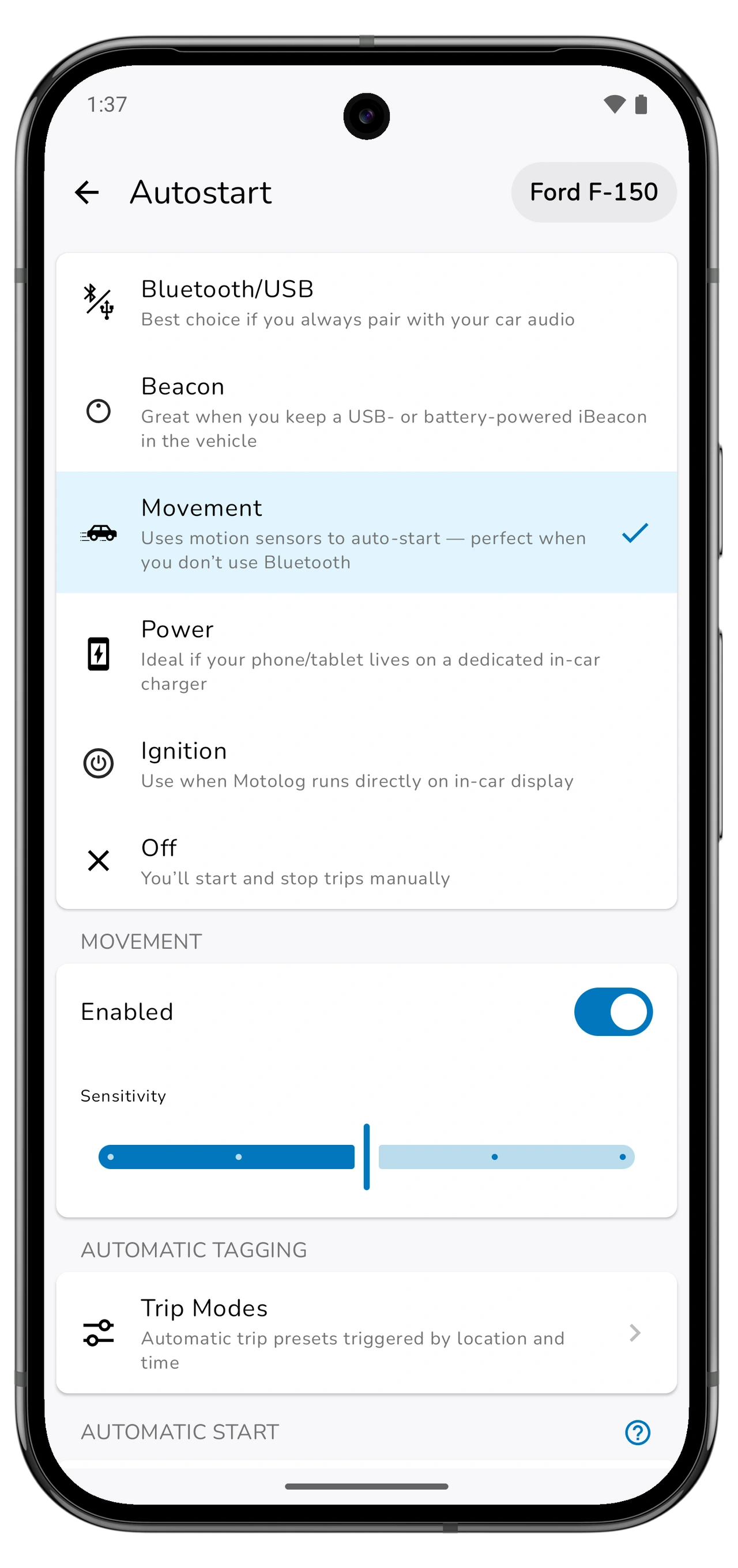
Open Drive → Autostart for the vehicle you want to track. Choose a method that matches how you use your phone in that vehicle.
Scroll sideways to see all columns.
| Method | Android | iPhone | When it is useful |
|---|---|---|---|
| Car connection | Bluetooth/USB | Bluetooth or CarPlay, configured through Apple Shortcuts | Your phone usually connects to the same car. |
| Beacon | Beacon | Beacon | You keep a compatible iBeacon in the vehicle to identify it. |
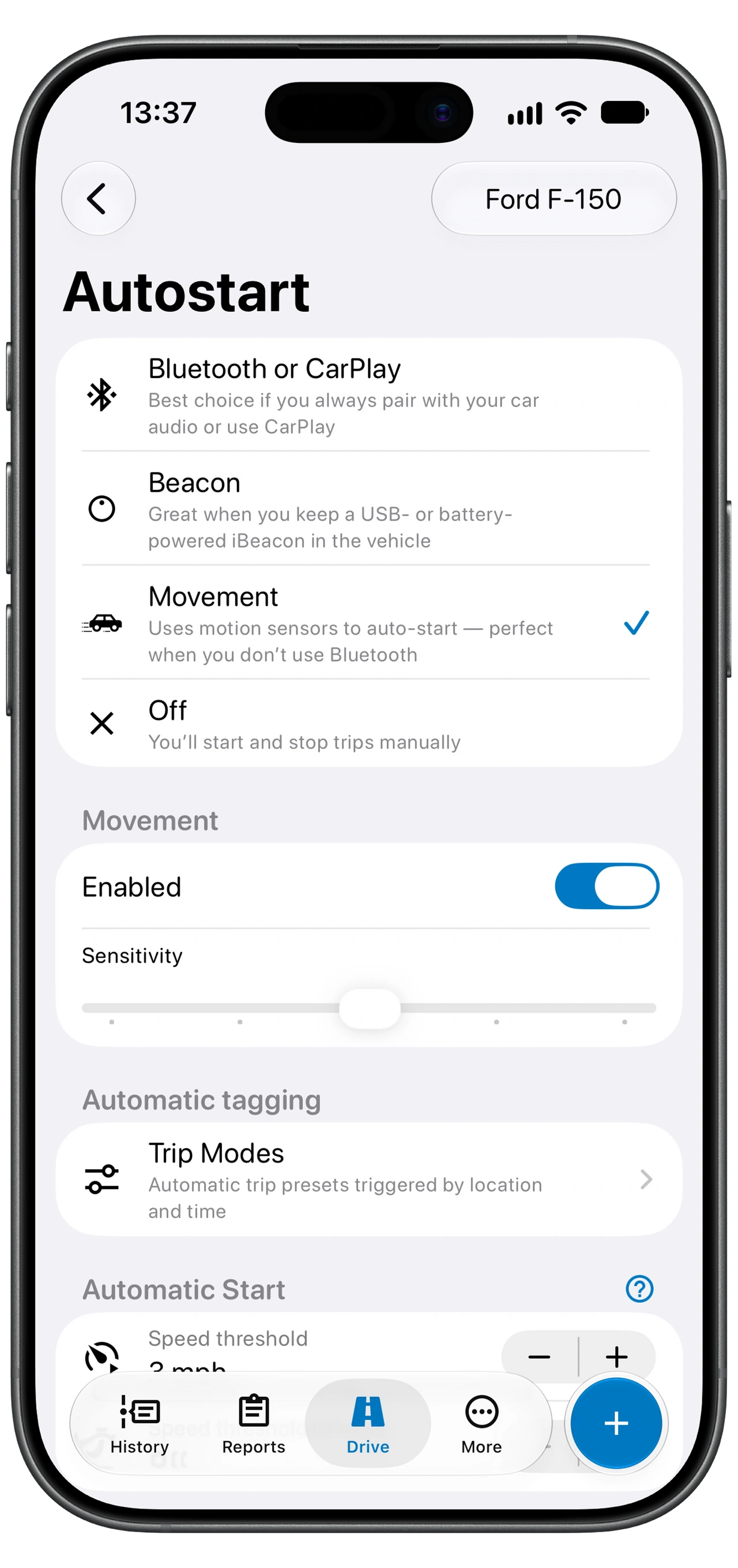
| Movement | Movement | Movement | You want detection based on motion sensors without a car connection or beacon. |
On iPhone, Bluetooth and CarPlay are alternatives: you can use Bluetooth without having CarPlay. On Android, additional Power and Ignition options support setups such as a dedicated in-car charger or an Android head unit running Motolog.
If you use several vehicles, configure each vehicle’s detection settings. A connection or beacon associated with a particular vehicle gives Motolog a way to identify it. Movement detection uses your phone’s motion and can also react when you travel as a passenger, so review those trips and the selected vehicle.
Set up automatic tracking on Android
- Select your vehicle and open Drive → Autostart. Choose Bluetooth/USB, Movement, or another available method that suits your setup.
- Configure the trigger. For Bluetooth tracking, select your car’s device. For Beacon, select the beacon kept in that vehicle.
- Grant the permissions Motolog requests. Automatic recording needs location access in the background. Depending on your detection method and Android version, the app may also request activity recognition or nearby-device permissions.
- Check Background execution in Autostart. Follow Motolog’s instructions to allow it to run in the background and remove battery restrictions that interfere with tracking. The relevant settings vary by phone manufacturer.
- Take a short test drive. After the trip finishes, open History and check the vehicle, start and end locations, distance, and route if route tracking is enabled.
If a trip does not start, check that the selected Bluetooth device actually connected or that your chosen detection method is active. If recording stops unexpectedly, review the app’s permission and battery warnings.
Set up automatic tracking on iPhone
- Select your vehicle and open Drive → Autostart. Choose Bluetooth or CarPlay, Movement, or Beacon.
- Allow background location access. Follow Motolog’s prompts to grant Always location access. For Movement detection, allow Motion & Fitness access when requested.
- For Bluetooth or CarPlay, open Set up in Shortcuts. Follow the in-app guide to create both a connection automation and a disconnection automation for your vehicle. Use the corresponding Motolog Connected and Disconnected actions and select Run Immediately in Shortcuts.
- Take a short test drive. If you use Bluetooth or CarPlay, connect as you normally would and disconnect at your destination. After the trip finishes, check the result in History.
The two Shortcuts automations let Motolog receive both the connection and disconnection events. If you change cars or replace your car’s Bluetooth system, update the device selected in the automations.
What appears in your mileage log
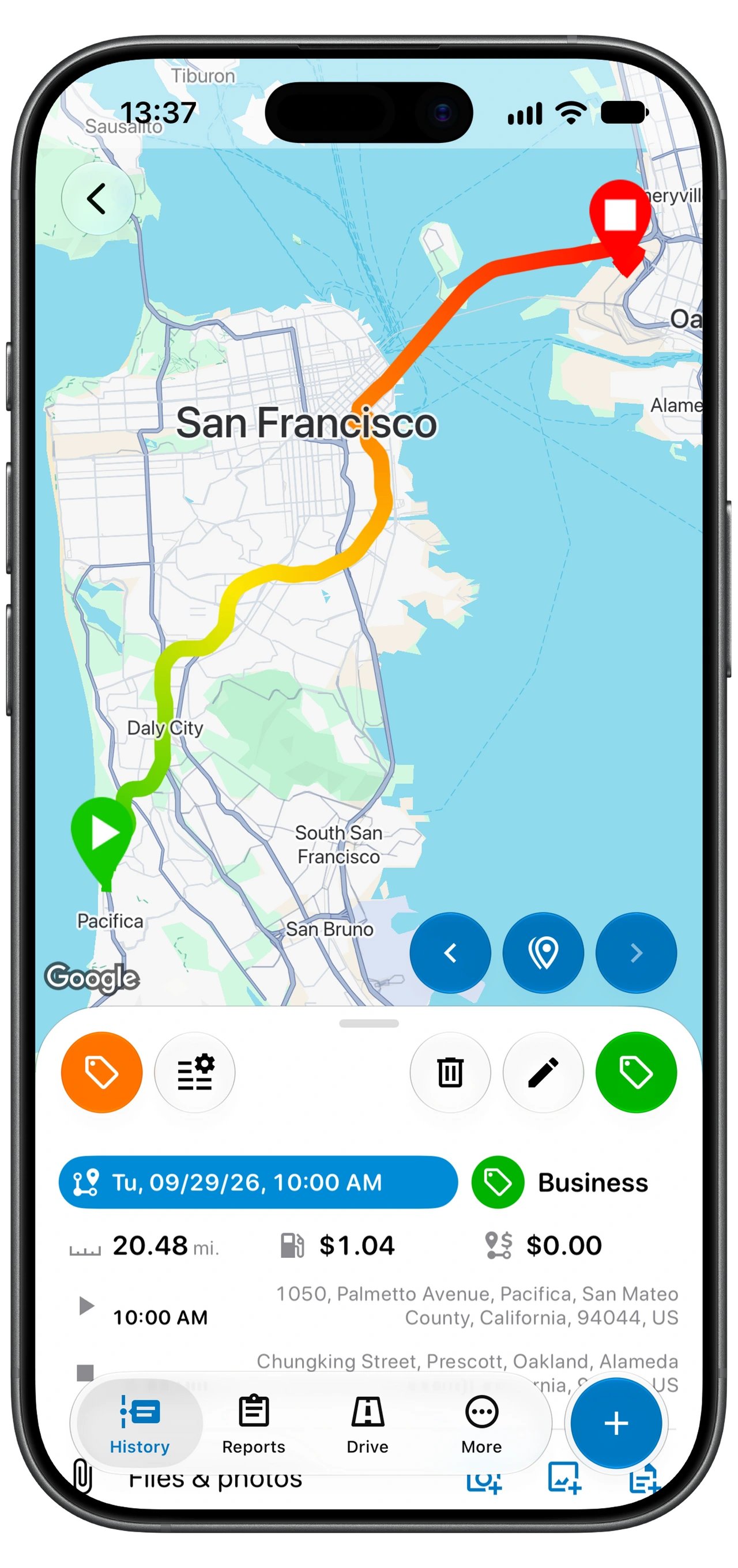
A recorded trip includes its date and time, distance, duration, and start and end locations. With Route tracking enabled, Motolog also saves the route so you can inspect the journey on a map. You can add notes and tags to explain the purpose of the drive.
Distance is calculated from location data. Poor reception, interrupted background access, or a missed connection event can affect the recorded result. Review your first few journeys after setup and check again after changing phones or tracking settings.
You can also add a trip manually if you forgot your phone or need to fill a gap in your records. Plans with automatic route estimation can estimate a route, distance, and duration from the locations you select.
Classify business and personal trips with modes
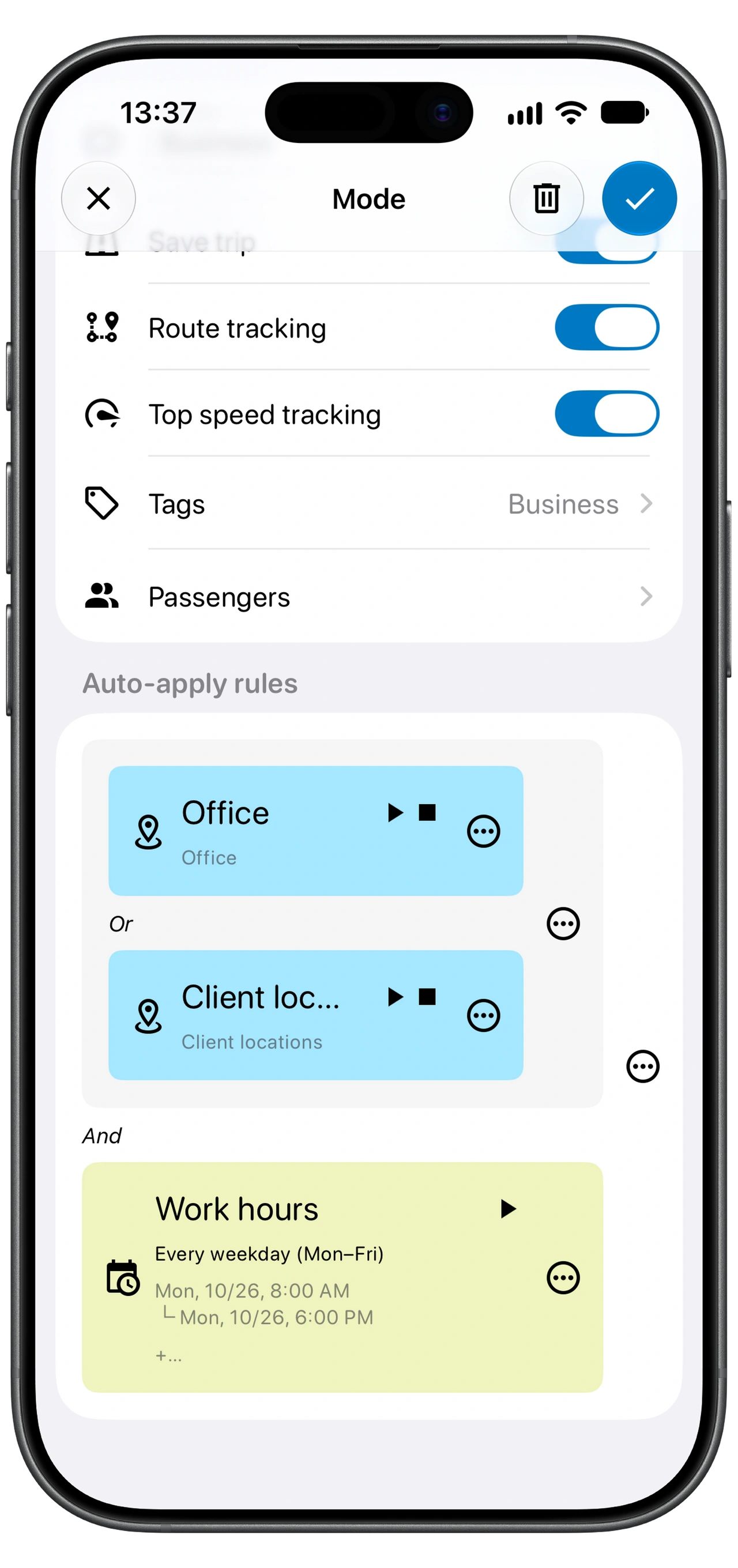
Trip modes are presets for how a journey is saved. A mode can contain tags and control whether to save the trip and its route. With automatic tagging included in your plan, you can apply modes using time or location rules.
For example, you could create a Business mode that adds a Business tag during your usual working hours. The example shown also uses Office or Client locations, so the location and work-hours rules must both match. Review exceptions such as a personal errand during the workday and change the tag when needed. A rule applies the criteria you set; the actual purpose of the trip still matters.
When several modes could apply, Motolog uses the first mode whose rules are satisfied. Put more specific rules above broader ones in the mode list.
Check Save trip and Route tracking when creating a mode. Turning off Save trip discards a trip when that mode applies. Turning off Route tracking means the trip’s route will not be recorded.
Battery use and background permissions
Recording location uses battery, and the effect depends on your phone, journey length, and settings. An in-car charger is useful for long drives.
Background location access lets Motolog record while the app is not on screen. Android battery optimization and power-saving settings can restrict that work, so use the app’s Background execution guidance if trips fail to start or recording is interrupted. Recheck permissions after changing phones or restoring the app.
Which plan includes automatic mileage tracking
Automatic trip recording is available on FREE, LITE, and PRO. The main differences for this workflow are distance limits and automatic tagging.
Scroll sideways to see all columns.
| Feature | FREE | LITE | PRO |
|---|---|---|---|
| Automatic trip recording | Included | Included | Included |
| Recorded trip distance | 10 trips per month without a distance cap; subsequent trips limited to 10 km each, about 6.2 miles | Unlimited | Unlimited |
| Automatic tagging using time or location rules | Not included | Not included | Included |
| Automatic route estimation for manually entered trips | Not included | Not included | Included |
| Unlimited PDF and Excel reports | Not included | Included | Included |
DUO, FAMILY, and Enterprise plans also include PRO features, with different account allowances. See Motolog plans and pricing for the full comparison. Final subscription prices are shown in the mobile app.
Review your trips and export your records
Before preparing a mileage report, check the vehicle, trip purpose, tags, and any missing or incomplete journeys. Add notes while you still remember why you travelled. You can then filter the records you need and export a PDF or Excel report, subject to your plan’s limits.
To get started, download Motolog for iPhone or Android, select a detection method, and check your first recorded drive. Once the setup is working for your vehicle, automatic recording reduces the trips you need to enter by hand.
For the next steps, follow the guides to automatic trip classification and creating a mileage report. If a journey is missing or incomplete, use the automatic tracking troubleshooting guide.