Motolog · Guides
How to add a refueling with Motolog's scanner
Motolog's refueling scanner uses your phone's camera to read the fuel-pump display and the vehicle's odometer. It transfers the readings into a refueling entry so you can check the details and save them without typing every number.
The scanner is available on iPhone and Android with a paid Motolog subscription, including LITE and PRO. You can also add a refueling manually. See plans and pricing for the current feature comparison.
Open a refueling for the correct vehicle
Select the vehicle you have just refueled. Tap +, then choose Refueling. Depending on your Add menu layout, a Refueling option with a scanner icon can open the scanner directly. You can also open it using the scanner icon in the refueling editor.
Allow camera access when Motolog requests it. The scanner has separate Scan pump and Scan odometer controls, so you can capture the pump and dashboard separately, in whichever order is convenient.
Wait until refueling is complete so the pump shows the final quantity and cost. Scan the odometer while the vehicle is stationary and the total mileage reading is visible.
Scan the completed fuel-pump display
- Point the camera at the pump's numeric display, including the final fuel quantity and total cost. Include the unit price if it is visible.
- Press and hold Scan pump while keeping the display clearly in view.
- Watch the detected readings and release the control once the values have been captured.
- Compare the values with the pump before continuing.
The scanner works with Quantity, Price, and Total cost. When two values are available, the third can be calculated. For example, total cost divided by fuel quantity gives the price per unit. A calculated field is not a separately read number, so check the captured values it depends on.
Keep the whole relevant display in view. If a reading is wrong or does not settle, adjust the angle or distance and scan again. Glare, reflections, and cropped digits can make a display harder to read.
Scan the odometer
Point the camera at the vehicle's total odometer reading, then press and hold Scan odometer. Release it after the mileage is captured and compare the number with the dashboard.
Use the accumulated vehicle mileage, rather than the resettable trip meter, remaining range, or speed display. Check that the distance unit in your vehicle's settings matches the reading you are recording.
You can capture just the pump or just the odometer and complete the other fields manually in the editor. If you need to retry a captured reading, tap its detected value to release it and scan again, or correct the value in the refueling editor before saving.
Choose whether to attach the scan photos
Enable Attach scans in the scanner if you want the captured scan images added as photo attachments to the refueling draft. This gives you images to refer back to when checking an entry later.
If you only need the values, leave Attach scans off. Review any attachments in the editor along with the numbers. Confirming the scan transfers the readings and selected attachments into the draft; it does not finish saving the refueling.
Review the draft and save the refueling
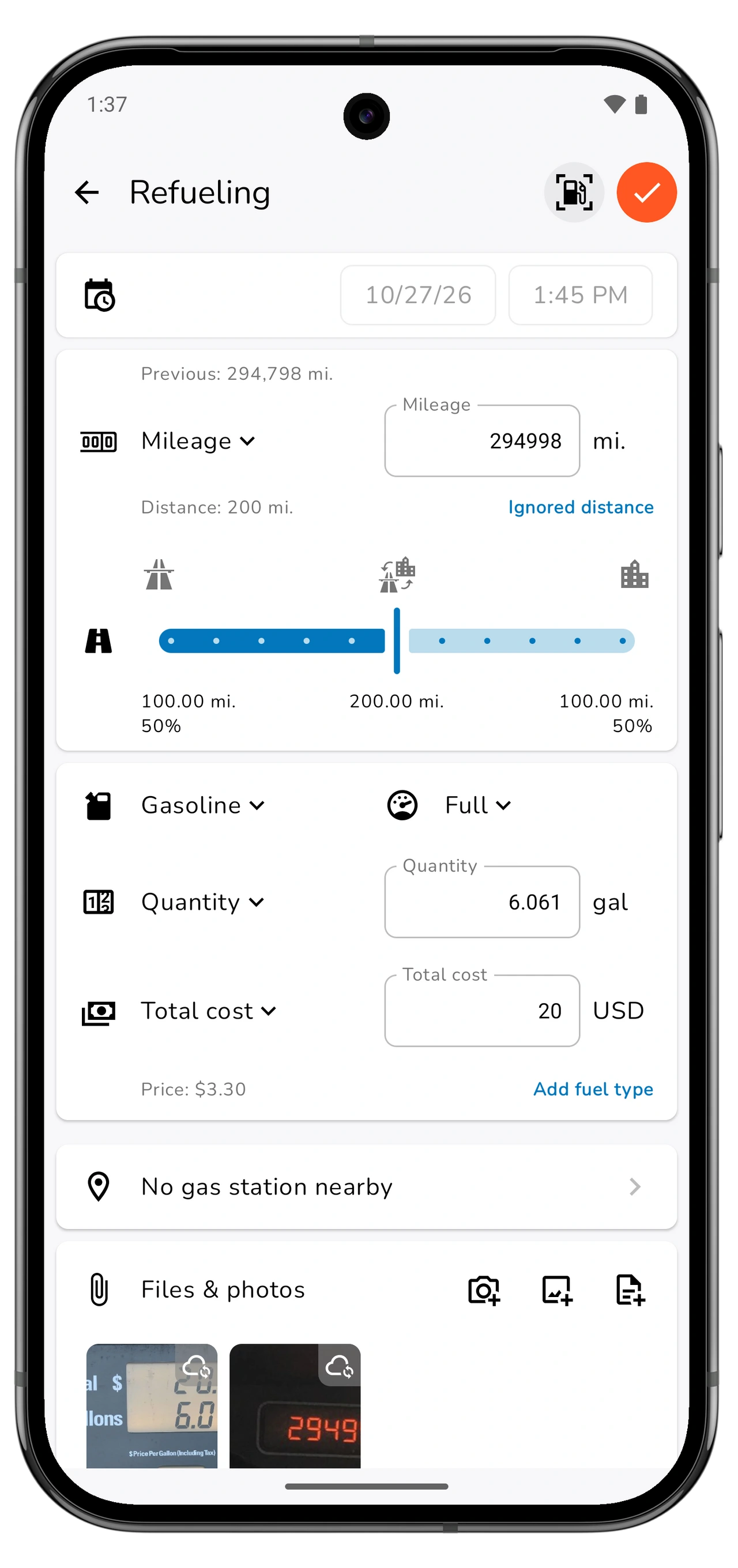
Tap Done in the scanner to return to the refueling editor. Check each of these before saving:
- Date and time: when the refueling actually happened.
- Mileage: the total odometer reading for this fill-up.
- Fuel type, quantity, and unit: the correct fuel and measurement, such as liters or gallons.
- Price, total cost, and currency: compare them with the completed pump display or your record of the purchase.
- Fill level: whether this was a full or partial fill-up.
- Station, notes, and attachments: add or correct the details you want to keep.
The scan fills numeric readings; review the other fields yourself. You can edit any incorrect or missing values before saving.
Save the refueling from the editor. If you bought more than one fuel type, review each fuel entry separately; the scan result fills the first fuel entry in the form.
Mark full, partial, and missed fill-ups correctly
The fill-level selection helps Motolog interpret your fuel history:
Scroll sideways to see all columns.
| Selection | When to choose it |
|---|---|
| Full | You filled the tank and have kept the intervening refueling records. |
| Partial | You added fuel without filling the tank. |
| Full after skipped | You filled the tank, but an earlier refueling is missing from the log. |
Choose the option that describes what happened. A partial fill-up should not be marked Full just to produce a fuel-economy result. Keep odometer readings and fuel quantities consistent across entries so the resulting statistics are useful.
Find the saved refueling and review your fuel history
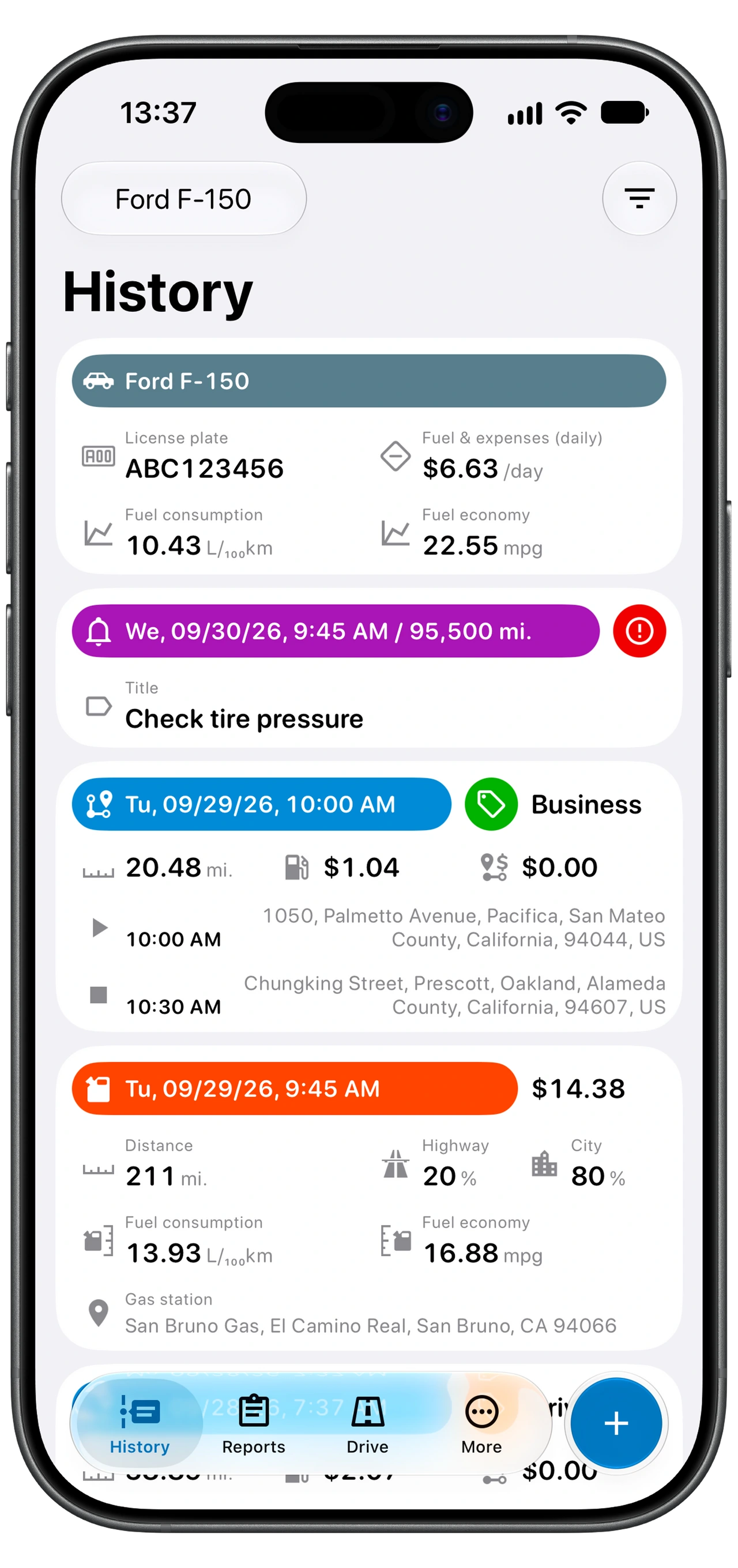
Open History for the vehicle and find the saved refueling. If you do not see it, check the History filter and make sure refuelings and the relevant dates are included.
Use Reports → Fuel to review fuel statistics for your records. Meaningful fuel economy depends on enough compatible refueling and mileage data; a single scanned entry may not yet provide a useful consumption result.
Fuel records complement your mileage log. If you need a report of your driving, use the separate mileage report workflow.
If the scanner needs another attempt
For Camera unavailable, check camera permission and reopen the scanner. For difficult readings, improve the view of the display: reduce reflections, keep the numbers sharp, and avoid cutting off leading digits or decimal places.
The scanner offers Fast and Thorough scanning. If Fast struggles with a clear display, try Thorough. Motolog may ask to download the additional scanning files before using it; complete that download when you have a connection.
Always compare the result with the actual readings. If a display remains difficult to scan, finish the refueling by entering the values manually. The goal is a correct fuel record, whether the numbers came from the camera or the keyboard.